blogsdatasoftcomputers

Blogs.datasoftcomputers.in

Best Use of Arduino With Ultrasonic Sensor (HC-SRO4)

Learn how to use an Arduino with the HC-SR04 ultrasonic sensor for distance measurement. Step-by-step guide with wiring, code, and practical applications.

Table of Contents

About Ultrasonic Sensor (HC-SRO4):

Arduino With Ultrasonic Sensor is a beginner-friendly project that demonstrates how to measure distance using sound waves. By using the HC-SR04 ultrasonic sensor with an Arduino board, you can accurately calculate distances to nearby objects—ideal for robotics, automation, or fun DIY builds.

The ultrasonic sensor sends out a sound wave and measures the time it takes for the echo to return. This time is then used to calculate distance using a simple formula.

This post will guide you through the complete setup process—from connecting the sensor to writing and uploading the Arduino code. You’ll learn how to use the Serial Monitor to read the measured distance in real-time.

Whether you’re building a simple object detection system or incorporating it into a more complex project like a robot or automatic gate, understanding how to use an ultrasonic sensor with Arduino is an essential skill in the world of electronics and embedded systems.

We’ll also cover potential issues you might face and how to resolve them, making this a comprehensive guide for hobbyists and learners alike.

How To Calculate Distance Of Object Using HC-SRO4:

When the HC-SR04 sensor sends an ultrasonic pulse, it travels to an object and reflects back to the sensor. The sensor measures the time it takes for the echo to return.

Since the pulse travels to the object and back, the total distance is twice the one-way distance.

Distance in cm=[Time(µs)*speed of Sound(cm/µs)]/2

Speed of sound in air ≈ 0.034 cm/µs

D = (time *0.034)/2

where : 

time is in  µs 

Distance in cm.

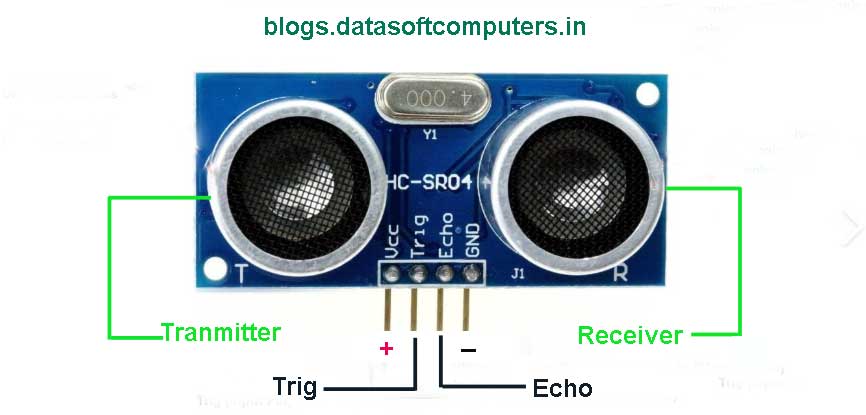
Ultrasonic Sensor (HCSRO4)

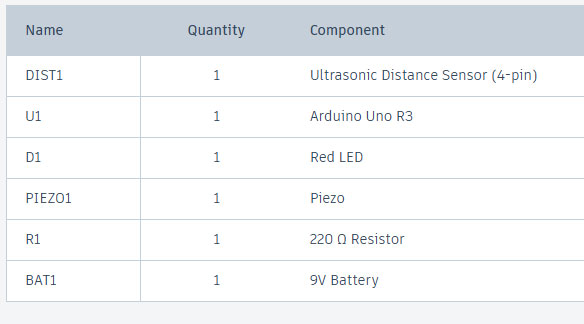
Component Required:

COMPONENT LIST TO USE ARDUINO WITH ULTRASONIC SENSOR

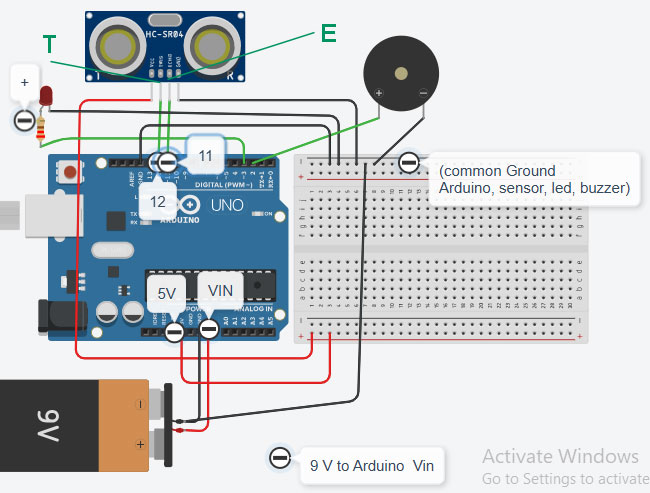
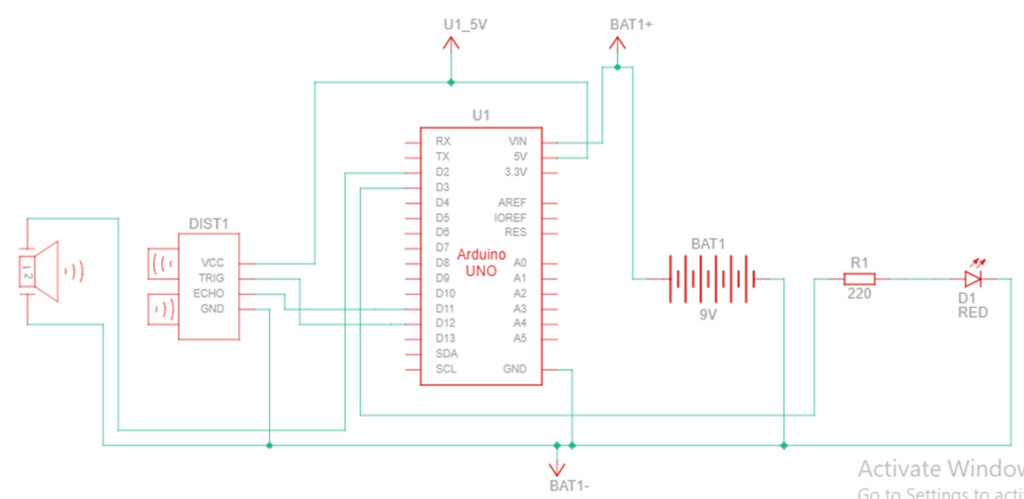
Connection Diagram:

Working of Arduino With Ultrasonic Sensor
CIRCUIT DIAGRAM FORM ARDUINO WITH ULTRASONIC SENSOR 2

Wiring & Working:

Wiring:

  • Connect Vcc pin of HC-SRO4 TO 5V PIN OF Arduino.
  • Connect GND pin of HC-SRO4 to GND pin of Arduino.
  • Connect Trigger pin of HC-SRO4 TO D12 of Arduino
  • Connect Echo pin of HC-SRO4 to D11 of Arduino.
  • Connect Red LED Anode to D3 of Arduino & Cathode to GND OF Arduino.
  • Connect Buzzer +VE to D2 of Arduino & GND to GND of Arduino.
  • To power Arduino Use 9 Volt Battery.
  • Make Common Ground of battery, Sensor & Arduino.

Working:

According to code when distance of sensor is less than or equal to 10 cm then red led will glow and buzzer will produce sound.

Program Video:

Program Code

#define tgpin 12
#define ecpin 11
#define led 3
#define buzzer 2
long duration;
int distance;
void setup()
{
//pinMode(LED_BUILTIN, OUTPUT);
pinMode(tgpin,OUTPUT);
pinMode(ecpin,INPUT);
pinMode(led,OUTPUT);
pinMode(buzzer,OUTPUT);
}

void loop()
{
digitalWrite(tgpin,LOW);
delayMicroseconds(2);
digitalWrite(tgpin,HIGH);
delayMicroseconds(10);
digitalWrite(tgpin,LOW);
duration=pulseIn(ecpin,HIGH);
distance=duration/58.2;
if(distance<=10)
{
digitalWrite(led,HIGH);
digitalWrite(buzzer,HIGH);
}
else
{
digitalWrite(led,LOW);
digitalWrite(buzzer,LOW);
}

}

Get Software:

Setup procedure to upload & run a program in Arduino IDE:

1. Connect Your Arduino Board

Plug your Arduino board (e.g., Uno, Nano, Mega) into your computer using a USB cable.

  1. Open the Arduino IDE

Launch the Arduino IDE on your computer.

  1. Write or Open a Sketch

You can:

Write your code in the editor, or

Go to File > Examples to open a sample sketch (e.g., Blink).

Example of a simple sketch to blink an LED:

void setup()

{

  pinMode(13, OUTPUT); // Set pin 13 as output

}

void loop()

 {

  digitalWrite(13, HIGH); // Turn on the LED

  delay(1000);            // Wait for 1 second

  digitalWrite(13, LOW);  // Turn off the LED

  delay(1000);            // Wait for 1 second

}

  1. Select the Board

Go to Tools > Board and select your Arduino model (e.g., Arduino Uno).

  1. Select the Port

Go to Tools > Port and choose the COM port where your Arduino is connected.

On Windows, it looks like COM3, COM4, etc.

On macOS/Linux, it looks like /dev/cu.usbmodem…

  1. Verify the Code

Click the checkmark icon (✔️) at the top left to verify/compile your code.

  1. Upload the Code

Click the right-arrow icon (➡️) next to the checkmark to upload the code to the Arduino.

  1. Check Output (Optional)

Use the Serial Monitor (🔍 icon or Tools > Serial Monitor) if your sketch includes serial communication (e.g., Serial.print()).

Also Check:
Arduino Overview and Pinout

You May Also Interested In Other Projects:

Working of Arduino With Ultrasonic Sensor

Best Use Of Arduino With Ultrasonic Sensor
Best Use of Arduino With Ultrasonic Sensor (HC-SRO4) Learn how to use an Arduino with ...
Circuit Diagram To Use Arduino With Relay

Best Use Of Arduino With Relay

Best Use Of Arduino With Relay Learn how to control high voltage devices using a ...
LDR SENSOR WITH ARDUINO CONNECTION DIAGRAM 2

LDR Sensor With Arduino To Observe Light

LDR Sensor With ArduinoLDR Sensor With Arduino Nano To On/Off Light Project –Light Detection Made ...

Leave a Comment

Your email address will not be published. Required fields are marked *

Scroll to Top